


Written: October 2025
Introduction: Snowflake Query Tags for Cost Monitoring and Performance
One of the most common challenges with Snowflake is tracking spend at a detailed level. Out of the box, Snowflake shows you costs grouped by warehouse or user. That’s helpful, but it doesn’t answer the real question every data team has: Which pipeline, dashboard, or job is costing us the most credits? Because that’s the one you need to tune.
This is where Snowflake Query Tags come in. Query tags allow you to attach metadata to every query so you can track costs and monitor performance by pipeline, dashboard, application, or even version. They’re simple to implement, cost nothing to use, and unlock the visibility you need to control spend.
In this guide, I’ll show you:
How to use query tags in Snowflake (including using SQL, Python and dbt)
Best practices for query tagging to ensure consistency when analyzing the results
How to monitor costs and performance by query tag using Snowflake’s QUERY_HISTORY views
A real-world case study where tagging revealed two queries driving 70% of costs
By the end, you’ll understand why query tags are one of the most underused but most powerful features for Snowflake cost monitoring and query performance management.
Where do Snowflake Customers Spend most Credits?
It’s commonly assumed that most Snowflake customer spend is from end-user queries - after all, that’s the entire point of Snowflake, to serve end-user queries. However, as Mike Scarpelli, the Snowflake Chief Financial Officer (CFO) indicated in an earnings call in January 2023 - about 70% of Snowflake consumption is by scheduled jobs.
That means, for every $100,000 a year you’re spending on Snowflake, $70,000 of that is on the ETL part, and most of that is almost certainly on schedule data transformation jobs.

However, it’s all well and good knowing that 70% of your spend is on the top 20 Virtual Warehouses that execute batch jobs, but you’ll typically find these execute millions of queries per year. How can you narrow down the problem?
The Challenge of Snowflake Cost Attribution
Snowflake gives you excellent visibility into which Virtual Warehouse consumed compute. But warehouses are often shared by dozens of pipelines and hundreds of jobs executing thousands of queries per day.
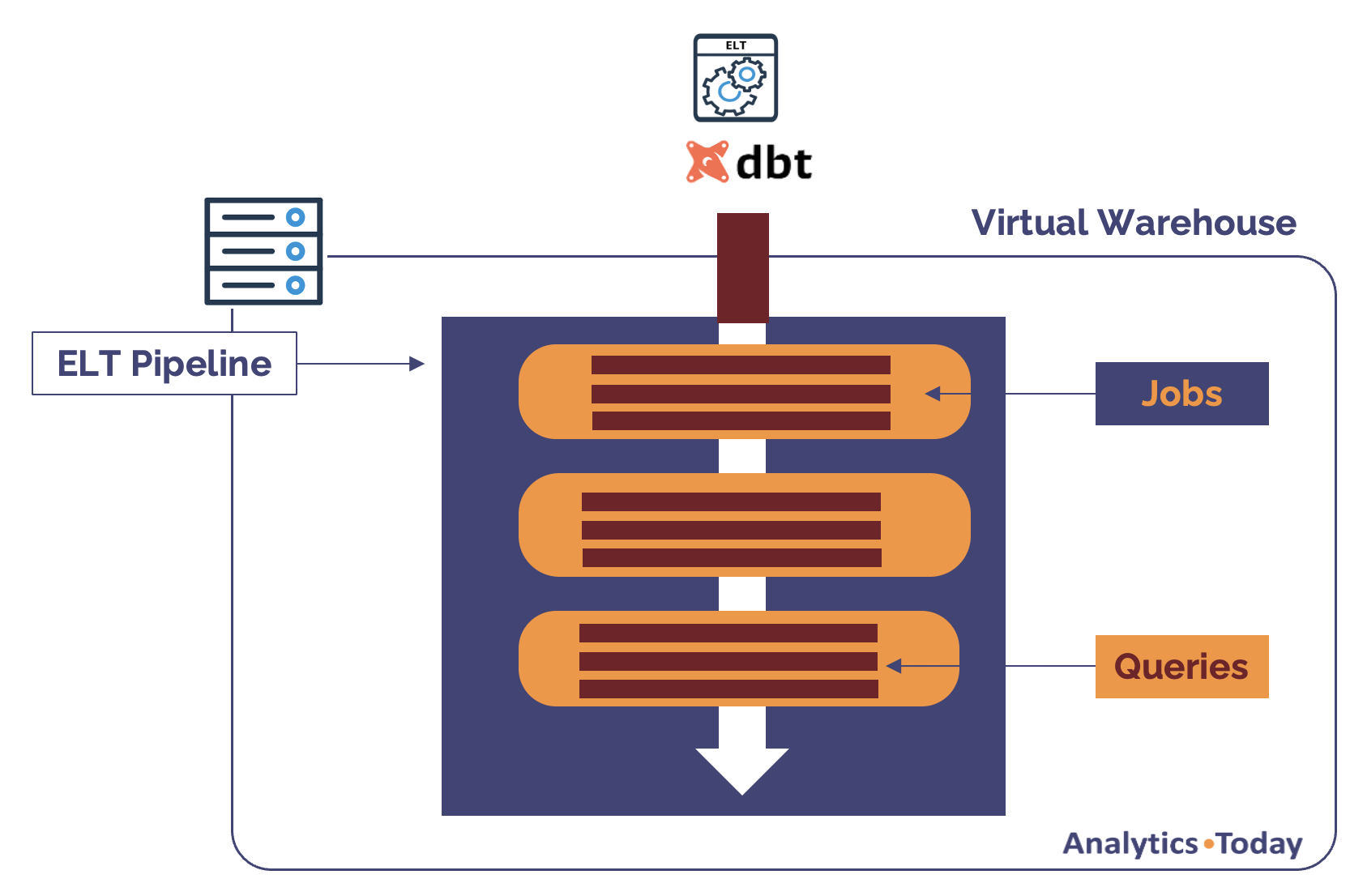
The diagram above illustrates the challenge. It shows a single ETL process which loads, transforms and delivers data as part of a pipeline. The pipeline itself consists of multiple Jobs that load, transform and write data, and each Job consists of multiple queries. While Snowflake exposes the performance statistics by query, it only shows cost at the warehouse level.
In reality, we ideally need to track cost and performance at the Pipeline and Job level. We need to ensure each pipeline delivers data within the required SLA, and need to ensure each Job executes on an appropriate sized virtual warehouse.
For example, if we execute a given ETL pipeline on an XSMALL warehouse we may find large complex jobs spill to storage which increases cost, while running the entire pipeline on a LARGE warehouse wastes credits as short running queries are more appropriately run on an XSMALL warehouse.
This is the reality for most teams. You’re trying to control performance and costs but you’re looking down the wrong end of the telescope.
A Better Alternative for Snowflake Cost Tracking
Instead of seeing “1,200 queries executed on BATCH_ETL_WAREHOUSE,” wouldn’t it be more useful to see a detailed breakdown of both cost and performance by PIPELINE or even scheduled JOB. For example:
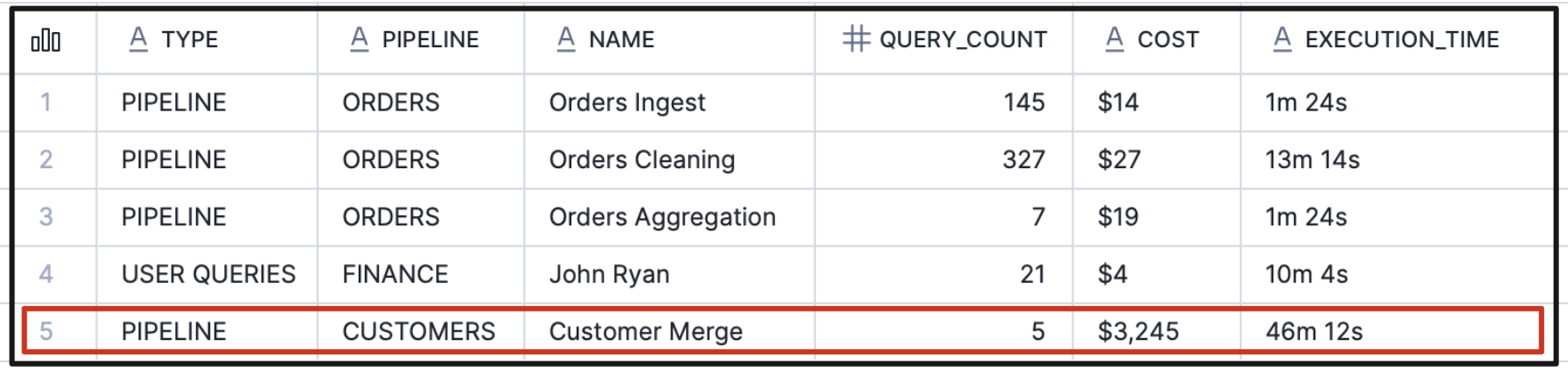
The screenshot above illustrates how a single pipeline (ORDERS) may consist of multiple jobs, each with its own estimated cost, execution, and query count. By tagging the Queries with both the Pipeline and Job, you can quickly see which pipelines are cheap and efficient — and which ones are slow and expensive.
For example, in the above report we can see the ORDERS pipeline has three jobs and 479 queries which in total cost $60 to per execution, whereas the CUSTOMERS pipeline, which includes just one job and only five queries, costs $3,245.
Clearly we need to drill down into the CUSTOMERS pipeline and investigate why those five queries are so expensive. Maybe they are executing on a warehouse that is too small and spilling to storage or perhaps they are reprocessing the entire set of Customers each time instead of identifying the changes.
How to Track Costs using Snowflake Query Tags
When you “tag” a set of queries (for example all the queries executed by a given script or job), it’s easy to aggregate results and identify the most expensive scheduled jobs. As Mike Scarpelli indicated, scheduled jobs typically account for 70% of Snowflake customer spend, so it’s a great place to start.
You can define query tags at different levels depending on what you’re trying to track:
USER level – Every query run by that user will carry the same query tag. Useful, for example to attribute spend by team, but not ideal if you want analysis by PIPELINE or even JOB. This can be can be achieved by setting a default query tag for the user.
SESSION level (recommended) – You can set a tag at the start of a ETL session so that all subsequent queries are grouped together. This is the best way to track the performance and cost of a given pipeline or scheduled job.
Python connection – When running Snowflake jobs through Python, you can define a query tag when establishing the connection. This allows you to track the cost and performance of that specific Python process.
In dbt – You can set tags per model, but be sure to indicate the pipeline in the tag. That way, you can calculate costs at the pipeline level and identify which pipelines are expensive or poorly performing.

How to Set a Query Tag in Snowflake
One question worth considering is how to define your query tag. You could define a query tag as a simple string, for example:
alter session set query_tag = 'BATCH_JOB=ABC123';
The above SQL tags every subsequent query with the identifier BATCH_JOB=ABC123 which makes is easy to identify the cost of running that job.
However, this approach is limited — it only tells you the JOB identifier. It’s far more effective to define the tag using JSON. That way, you can embed multiple attributes (pipeline, environment, version etc) and slice your analysis in many different ways.
Using JSON for Rich Metadata
The SQL below illustrates how setting the QUERY_TAG using JSON can be used to set multiple attributes. This is the method we used to report upon cost by Pipeline and Job Name in the report above.
alter session set query_tag = '{
  "type": "PIPELINE",
  "pipeline": "ORDERS",
  "job": "Orders Ingest",
  "env": "prod",
  "version": "v1.2",
  "trigger": "schedule"
}';
This gives you the flexibility to run queries like “Show me all production pipelines by version” or “Which scheduled jobs cost the most this month?”
The Snowflake Documentation shows how to convert JSON back to structured data and it’s best practice to create a view over JSON and then query the view.
What Level should I set the Snowflake QUERY TAG?
Snowflake provides several options to set the QUERY TAG. This includes:
User: Every query executed by a given USER which can roll up to TEAM
Session: Every query executed within a given SESSION (best practice for batch jobs)
Connection: Every query executed by a Python job or a dbt Model.
Here are some SQL examples showing how this is possible:
Session Level
This method is best used for automated jobs, and involves setting a QUERY_TAG as the first step in the job. Subsequent statements are automatically tagged and can be reported and analyzed.
-- For a given session
alter session set query_tag = '{"pipeline":"ad_hoc_analysis","env":"dev"}';
User or Session Level
The SQL below illustrates how to set the query tag for a USER. This can be used to add additional attributes about the user, for example which team or department they work in.
-- User Level
alter user ETL_USER
  set default_query_tag = '{"team":"data-eng"}';
Python Connection
A the start of each python procedure you can tag the connection. This means each subsequent query is tagged accordingly.
con = snowflake.connector.connect(
    user='USER',
    password='PW',
    account='ACCT',
    session_parameters={'QUERY_TAG': '{"pipeline":"CUSTOMER_PIPELINE"}'}
)
dbt Model Tagging
When using dbt (Database Built Tool), you can tag each MODEL
models:
  my_project:
    orders:
      +query_tag: '{"pipeline":"ORDERS","env":"prod"}'
Querying Snowflake Costs by Query Tag
To calculate the total cost of each pipeline and job we need to estimate the cost of each query. The SQL below shows one method which uses the WAREHOUSE_METERING_HISTORY which summarizes cost by hour and warehouse which is used to estimate the cost of each query using TOTAL_EXECUTION_TIME from QUERY_HISTORY.
The result is illustrated in the screenshot below followed by the SQL.
-- This query attributes warehouse compute credits to individual queries using TOTAL_EXECUTION_TIME,
-- adds any per-query cloud-service credits, aggregates by JSON fields (type, pipeline, job),
-- and formats credits to 3 decimal places and cost to 2 decimal places.

WITH q AS (
  -- Pull required fields from QUERY_HISTORY and parse QUERY_TAG JSON once
  SELECT
    QUERY_ID,
    QUERY_TAG,
    WAREHOUSE_ID,
    START_TIME,
    END_TIME,
    EXECUTION_TIME,                                        -- query execution time in milliseconds
    COALESCE(CREDITS_USED_CLOUD_SERVICES, 0) AS CREDITS_USED_CLOUD_SERVICES,
    TRY_PARSE_JSON(QUERY_TAG) AS qtag_json                 -- parse the JSON stored in QUERY_TAG
  FROM SNOWFLAKE.ACCOUNT_USAGE.QUERY_HISTORY
  WHERE START_TIME IS NOT NULL
    AND END_TIME IS NOT NULL
    AND EXECUTION_TIME IS NOT NULL                         -- require EXECUTION_TIME to attribute by execution
),

w AS (
  -- Warehouse metering history by hourly window (START_TIME/END_TIME represent the hour window)
  SELECT
    START_TIME   AS WH_START_TIME,
    END_TIME     AS WH_END_TIME,
    WAREHOUSE_ID,
    CREDITS_USED,
    CREDITS_USED_COMPUTE,
    CREDITS_USED_CLOUD_SERVICES
  FROM SNOWFLAKE.ACCOUNT_USAGE.WAREHOUSE_METERING_HISTORY
),

query_hour_overlap AS (
  -- Identify which warehouse-hour rows overlap each query's wall-clock runtime.
  -- We keep the query's EXECUTION_TIME (ms) so we can attribute credits proportionally
  -- using TOTAL_EXECUTION_TIME across all queries that overlap the same warehouse-hour.
  SELECT
    q.QUERY_ID,
    q.qtag_json,
    q.WAREHOUSE_ID,
    w.WH_START_TIME,
    w.WH_END_TIME,
    q.EXECUTION_TIME AS execution_time_ms,
    w.CREDITS_USED,
    w.CREDITS_USED_COMPUTE,
    w.CREDITS_USED_CLOUD_SERVICES,
    -- overlap_seconds is the wall-clock overlap between query runtime and the warehouse-hour window.
    -- This is used only to determine whether there is an overlap (non-zero) and to include queries
    -- in the per-hour execution-time totals. We use DATEDIFF('second', start, end) to avoid
    -- timestamp arithmetic type issues.
    GREATEST(
      0,
      DATEDIFF(
        'second',
        GREATEST(q.START_TIME, w.WH_START_TIME),
        LEAST(q.END_TIME, w.WH_END_TIME)
      )
    ) AS overlap_seconds
  FROM q
  JOIN w
    ON q.WAREHOUSE_ID = w.WAREHOUSE_ID
   AND q.START_TIME < w.WH_END_TIME       -- only rows where query starts before warehouse hour ends
   AND q.END_TIME   > w.WH_START_TIME     -- and query ends after warehouse hour starts
),

warehouse_hour_exec_totals AS (
  -- For each warehouse-hour window compute the total EXECUTION_TIME (sum of execution_time_ms)
  -- across all queries that overlapped that window. This total is the denominator when
  -- attributing that warehouse-hour's compute credits to individual queries.
  SELECT
    WAREHOUSE_ID,
    WH_START_TIME,
    WH_END_TIME,
    SUM(execution_time_ms) AS wh_total_execution_time_ms,
    CREDITS_USED,
    CREDITS_USED_COMPUTE,
    CREDITS_USED_CLOUD_SERVICES
  FROM query_hour_overlap
  GROUP BY WAREHOUSE_ID, WH_START_TIME, WH_END_TIME, CREDITS_USED, CREDITS_USED_COMPUTE, CREDITS_USED_CLOUD_SERVICES
),

query_attributed_credits AS (
  -- Attribute compute credits from each warehouse-hour to each overlapping query proportional to
  -- the query's EXECUTION_TIME divided by the warehouse-hour's total execution time.
  SELECT
    qho.QUERY_ID,
    qho.qtag_json,
    qho.WAREHOUSE_ID,
    qho.WH_START_TIME,
    qho.WH_END_TIME,
    qho.execution_time_ms,
    wht.wh_total_execution_time_ms,
    -- prefer CREDITS_USED_COMPUTE when available; otherwise fall back to CREDITS_USED
    COALESCE(wht.CREDITS_USED_COMPUTE, wht.CREDITS_USED, 0) AS wh_compute_credits,
    CASE
      WHEN wht.wh_total_execution_time_ms > 0
        THEN (qho.execution_time_ms::double / wht.wh_total_execution_time_ms::double)
             * COALESCE(wht.CREDITS_USED_COMPUTE, wht.CREDITS_USED, 0)
      ELSE 0
    END AS attributed_compute_credits
  FROM query_hour_overlap qho
  LEFT JOIN warehouse_hour_exec_totals wht
    ON qho.WAREHOUSE_ID = wht.WAREHOUSE_ID
   AND qho.WH_START_TIME = wht.WH_START_TIME
   AND qho.WH_END_TIME = wht.WH_END_TIME
),

query_total_credits AS (
  -- Sum attributed compute credits across all overlapping hours for each query
  SELECT
    qa.QUERY_ID,
    qa.qtag_json,
    SUM(qa.attributed_compute_credits) AS total_attributed_compute_credits
  FROM query_attributed_credits qa
  GROUP BY qa.QUERY_ID, qa.qtag_json
),

query_credits_final AS (
  -- Combine the attributed compute credits with any per-query cloud-service credits recorded
  -- on the QUERY_HISTORY record to get total credits per query.
  -- Also extract the JSON fields we will group by: type, pipeline, job
  SELECT
    q.QUERY_ID,
    q.QUERY_TAG,
    COALESCE(qtc.total_attributed_compute_credits, 0) AS total_attributed_compute_credits,
    q.CREDITS_USED_CLOUD_SERVICES,
    (COALESCE(qtc.total_attributed_compute_credits, 0) + COALESCE(q.CREDITS_USED_CLOUD_SERVICES, 0)) AS total_credits,
    q.EXECUTION_TIME,
    -- Extract JSON fields as strings; use 'UNKNOWN' when the key is missing or JSON parse fails.
    COALESCE( (q.qtag_json:"type")::string, 'UNKNOWN')     AS tag_type,
    COALESCE( (q.qtag_json:"pipeline")::string, 'UNKNOWN') AS tag_pipeline,
    COALESCE( (q.qtag_json:"job")::string, 'UNKNOWN')      AS tag_job
  FROM q
  LEFT JOIN query_total_credits qtc ON q.QUERY_ID = qtc.QUERY_ID
),

agg_by_tag AS (
  -- Aggregate per (type, pipeline, job) group.
  -- number_of_queries counts how many queries ran for that job.
  -- sum_credits is the sum of total credits attributed to those queries.
  -- total_execution_time_ms is the sum of EXECUTION_TIME for the group (ms).
  SELECT
    tag_type,
    tag_pipeline,
    tag_job,
    COUNT(*) AS number_of_queries,
    SUM(total_credits) AS sum_credits,
    SUM(EXECUTION_TIME) AS total_execution_time_ms
  FROM query_credits_final
  GROUP BY tag_type, tag_pipeline, tag_job
)

-- Final projection: format credits to 3 decimal places, cost at $3 per credit to 2 decimals,
-- and provide a human-readable total execution time for the group.
SELECT
  tag_type       AS "type",
  tag_pipeline   AS "pipeline",
  tag_job        AS "job",
  number_of_queries,
  -- display cost at $3 per credit, formatted to 2 decimals
  TO_CHAR(ROUND(sum_credits * 3.0, 2), 'FM9999999990.00')       AS estimated_cost_usd,
  -- total execution time in whole seconds (for any additional uses)
  FLOOR(total_execution_time_ms / 1000)                        AS total_execution_seconds,
  -- human readable formatting Xh Ym / Ym Zs / Zs
  CASE
    WHEN FLOOR(total_execution_time_ms / 1000) >= 3600 THEN
      CONCAT(
        FLOOR(FLOOR(total_execution_time_ms / 1000) / 3600), 'h ',
        FLOOR((FLOOR(total_execution_time_ms / 1000) % 3600) / 60), 'm'
      )
    WHEN FLOOR(total_execution_time_ms / 1000) >= 60 THEN
      CONCAT(
        FLOOR(FLOOR(total_execution_time_ms / 1000) / 60), 'm ',
        FLOOR(FLOOR(total_execution_time_ms / 1000) % 60), 's'
      )
    ELSE
      CONCAT(FLOOR(total_execution_time_ms / 1000), 's')
  END AS total_execution_time_readable
FROM agg_by_tag
ORDER BY (sum_credits * 3.0) DESC, number_of_queries DESC;
Calculating Query Cost
Note: Estimated query cost is based upon QUERY_HISTORY rather than the technically more accurate QUERY_ATTRIBUTION_HISTORY. This is because the attribution history doesn’t take account of idle time as a result of warehouse AUTO_SUSPEND and for repeating jobs, this can add considerable cost to each job.
ACCOUNT_USAGE query performance
You may find querying ACCOUNT_USAGE directly has overhead — these views are large, slow, and limited to 12 months of history. A better practice is to extract the data into a reporting table.
That way:
Extended History: You retain data for as long as you want.
Performance: Queries run faster because they are executed against physical tables instead of Snowflake provided views
Reduced Cost: You can build daily dashboards which execute without hammering the system views.
Best Practices for Query Tagging in Snowflake
Use JSON tags: A string only lets you track one attribute. JSON lets you capture multiple attributes (pipeline, job name, env, version, trigger). This unlocks far more flexible analysis downstream.
Set defaults at the user level: Good for broad attribution — every query by that user will be tagged. However, don’t rely on this alone, (especially for scheduled jobs), because it doesn’t distinguish between different pipelines or jobs.
Use session-level tags for pipelines and jobs: This is the sweet spot. One ETL session = one pipeline. Set the tag when the session starts, and everything runs with consistent metadata. If the script includes multiple “Jobs” simply set the QUERY_TAG again to indicate the change.
Tag dbt models with pipeline information: If you use dbt, set query tags per model and include the pipeline in the tag. This makes it easy to identify which pipelines or jobs are expensive and which models are causing bottlenecks.
Automate tagging in orchestration tools: Don’t leave it to developers to remember. Automate tag assignment in Airflow, dbt, or your pipeline orchestration framework.
Standardize your tag schema: Decide on keys (pipeline, env, version, trigger) and stick to them. Consistency is critical for reporting.
Extract query history into reporting tables: Don’t hammer the ACCOUNT_USAGE views - you’ll suffer from poor query performance. Extract the data into your own warehouse tables for long-term history and fast analysis.
Build dashboards for cost monitoring: A simple dashboard showing cost and performance by query tag will quickly reveal your expensive jobs. Without tags, you’ll never find them.
Real-World Case Study: Cutting Snowflake Spend with Query Tags
A retail customer ran 250+ ETL pipelines daily which included over 2,000 queries spread across fifteen virtual warehouses. The System Administration team saw that the TRANSFORM, DATA_SCIENCE and CUST_MANAGEMENT warehouses were together costing over $60,000 a month, but with 50,000 queries per month on just these three warehouses, finding the problem was like looking for needle in a field of hay-stacks.
With tags applied per job, they discovered that two jobs (“daily_customer_merge” and “weekly_product_rollup”) were responsible for 70% of the cost.
They discovered the “weekly product rollup” job was executing every day instead of weekly and the “daily customer merge” was both executing every two hours (instead of daily), and was re-processing the entire customer history instead of the newly updated values.
Simply by reducing the frequency of these jobs they cut overall spend by 40% immediately, and then adjusting the “daily customer merge” job using change data capture to save another 10%
Without tags, they’d never have spotted the culprits.
Takeaway: Always Tag Your Snowflake Queries!
If you’re not using query tags, you’re flying blind. They’re the simplest way to get granular visibility into Snowflake spend and performance—and they cost nothing to use.
Rule of thumb: Always tag your queries. Pipelines, dashboards, and ad-hoc analysis. If it runs in Snowflake, tag it.
Priority: If you already have a massive Snowflake deployment executing thousands of queries, start with the longest running, most frequently executed jobs. Your System Admins will probably have an idea where to look.
About the author
After 30 years of experience building multi-terabyte data warehouse systems, I spent five years at Snowflake as a Senior Solution Architect, helping customers across Europe and the Middle East deliver lightning-fast insights from their data.
In 2023, he joined Altimate.AI, which uses generative artificial intelligence to provide Snowflake performance and cost optimization insights and maximize customer return on investment.
Certifications include Snowflake Data Superhero, Snowflake Subject Matter Expert, SnowPro Core, and SnowPro Advanced Architect.
Comments
Join the discussionNo comments yet. Be the first to comment.


